These codes have been tested on a Nokia 6600:
1) *#06# - Get the Serial Number/IMEI.
structure of the IMEI :
XXXXXX XX XXXXXX X
TAC FAC SNR SP
· TAC = Type approval code
· FAC = Final assembly code
· SNR = Serial number
· SP = Spare
2) *#0000# - Get the SW version (e.g. V 5.27.0 / 28-06-04 /NHL-10 )
3) *#2820# - Get the Bluetooth (BT) device address
4) xx# - Quick contact access (xx = location number, e.g. : 17#)
5) When switching the phone on with the "ABC" key (pen) pressed, no
application is started, it's a "safeboot".
WARNING : here is the list of some dangerous codes; use them
with care, I'm not responsible for any damage ...
1) *#7370925538# (*#Res0Wallet#) - Deletes the code for the "wallet"
and erase all the content of the "wallet"
2) *#7780# - Reset to the original settings; some
informations are also deleted and need to be re-entered.
3) *#7370# - Soft format - this will resets all the phone
memory (like re-format a disk); make sure to have full battery
charged !
4) [Green]+[def3]+[*+] during a power on performs a hard format :
this will return the phone like you have received; make sure to
have full battery charged !
5) *#92702689# (WAR0ANTY) enters into the warranty menu -
this code doesn't work with all series 60 phone -.

S60 Code


My New OSX86 Machine


My New OSX86 Machine:
- Intel Celeron 331 2.66GHz : RM200
- MOBO Intel GNTL GMA950 : RM380
- Corsair DDR2 512Mb : RM175
- Imation DVD Writer : RM160
- iCUTE Casing : RM225
- HDD lama (old 1)
- Bluetooth donggle : RM25
Creating Digital Picture Frame
 This is a good project for those have unused/old laptop. This project aka Linux Toys Project (Chapter 15: Creating a Digital Picture Frame).
You can find it here.
My Flickr

Today, I just found new way of photo blogging. I am using Nokia Lifeblog, connect tru Flickr & my 3G phone 6680. Raw flickr you can found at norrafi@flickr.
To start you can download lifeblog and register lifeblog@flickr. To insert your Flickr on blogger, you can found it here
Good Luck
Myself a Pro Photographer

The Aperture AdvantageOn the night of the pairs competition in Turin the system worked without a hitch. To keep Laforet focused on the skaters, the new system required that he stop shooting only long enough to insert his CompactFlash cards into a card reader attached to his PowerBook. From there, Image Capture and Automator scripts automatically copied and moved high-res images (for eventual transmission to the Times) and corresponding low-res images (for immediate transfer to his photo editor over an unexpectedly slow ADSL connection) into separate files on Laforet’s PowerBook.
more info here
Today, I list all todo/tobuy items which make me like pro photographer:
- Camera : Done ( I have Olympus Camedia C760 for starting), I always remember that good photographer is his skill not his camera. TQ my lecturer, i learn it from UTM.
- Laptop : Done ( I have Dell C610 for starting), and planning to buy intel ibook (macbook) launch today by apple. I will use my laptop as temporary storage before editing and publish to blog (while on mobile).
- Powerfull desktop : Done ( I have custom OSX86 at home, but not powerfull enough)
- Broadband Connection : Done ( I have 3G Unlimited)


BAGAIMANA MUAT-TURUN FAIL TORRENT DI PEJABAT/UNIVERSITI YG ADA PROXY
Di sini, saya menggunakan Azureus, tetapi anda boleh mencuba client lain. Your-Freedom adalah sama fungsi dengan software HTTP-Tunnel, ia berfungsi sebagai terowong HTTP (HTTP-tunneling)
SOCKS proxy menggunakan Internet proxy. Apa yg anda perlu lakukan ialah:
Di Azureus:
1) Klik pada Tools- Options-Connection
2) Ikut seperti cara-cara di bawah (lihat gambar)
- 16881 Incoming TCP port
- Tandakan proxying of tracker comm.
- Tandakan I have a SOCKS proxy
- Host = Localhost
- Port = 1080
- Tandakan proxying of peer comm.
- Tandakan Inform tracker of limitation
- SOCKS version V5
- Tandakan Use same proxy setting for tracker peer comm. proxy
Di Your-Freedom
1) Pergi ke Ports tab
2) Tandakan SOCKS 4/5 Port 1080
3) On Local Port Forwards, klik Add dan isi:
- Local port = 16881
- Remote Port =16881
Selesai!!! Gambar-gambar dibawah adalah contoh cara-cara setting dan
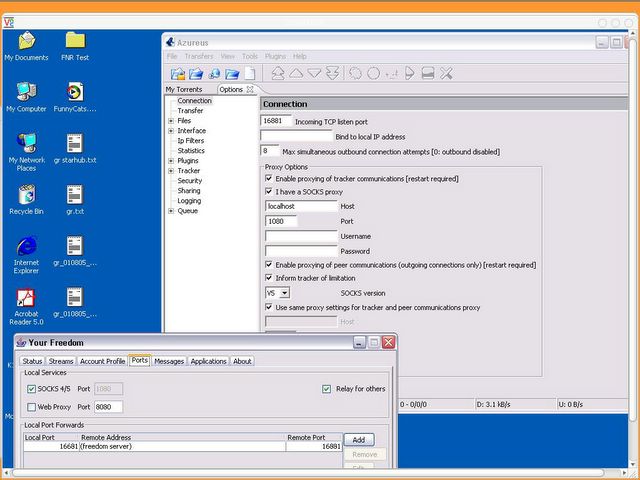
ketika ia berkerja. Selamat mencuba.

Technorati Tags: tips

It's a quite long time that any pic of myself appear on this blog. Here: is my son. He very much like cars more than me, with Fast & Forious his favourite movie ( Sesame Street & Purple Dinosour dah tentu la). It easy for me to persuade him, just bait using Fast & Forious DVD. hehehe. Love Azri. 
P2P ON OFFICE : HOW TO BYPASS PROXY
1) Your Freedom
2) Azureus
I'm using Azureus here, but you can try other torrent client. Your Freedom is similar with HTTP-Tunnel, which is convert your SOCKS proxy to your real Internet Proxy (SOCKS proxy tunnel to Internet proxy). What you need to do is:
On Azureus:
1) At Tools Options Connection
2) Follow as below config (as pic below)
- 16881 Incoming TCP port
- Enable proxying of tracker comm.
- Enable I have a SOCKS proxy
- Host = Localhost
- Port = 1080
- Enable proxying of peer comm.
- Enable Inform tracker of limitation
- SOCKS version V5
- Enable Use same proxy setting for tracker peer comm. proxy
On Your-Freedom
1) Go to Ports tab
2) Enable SOCKS 4/5 Port 1080
3) On Local Port Forwards, click Add fill:
- Local port = 16881
- Remote Port =16881
Done!!! Below how config should look like, and
How it work look like. Peace...
Novell Linux Desktop Demonstration Videos

Best siuttt... Looking forward their hardware config. I'm trying to build a new system that can dual boot OpenSUSe OSX86, seem this video inspire me.
Opera Mini on 3G Phone

My Real OSX86 machine
-RAM: 1GB DDR2-667 (4-4-4-10) ~RM700
-HD: 1 x 36 GB SATA WD Raptor (10K RPM)
-GPU: GMA950 (supporting QE/CI at 1280 x 1024)
-Xbench: />

Subscribe to hello.igetconnection.com


 Posts
All Comments
Posts
All Comments
